Email Guide
SPF, DKIM and DMARC Setup for a Small Business
SPF lists who may send for your domain, DKIM signs each message, and DMARC checks that the two match your From address. Set up all three for every tool that sends as you, then tighten DMARC slowly so your own invoices never get blocked.
- Year 1Website
- Year 2Map Listings
- Year 3Booking Tool
- Year 4Front Desk
- Year 5Payments
- Year 6Reports
Same six pieces.
Years of lessons, one read.
Free to read. Most of this guide is open. The finishing pieces at the end come to you when you opt in.
Start Here
- List every tool that sends email as you before you touch DNS.
- Keep one SPF record and stay under 10 lookups, per RFC 7208.
- Turn on DKIM inside every tool, since that is what lines up with your From address.
- Start DMARC at none, read a week of reports, then move to quarantine and reject.
- Give spare domains that never send a lock down record so nobody can fake them.
Why Your Quotes Land in Spam
We send a lot of business email from a lot of domains. Quotes, invoices, booking notes, review asks, lead alerts. Every one of those has to land in an inbox, not a spam folder. So every brand we run gets the same three DNS records before it sends a single customer email. SPF, DKIM and DMARC.
Most small business owners never touch these records. Someone set up the email years ago. Then the shop added a CRM, an invoicing tool, a review tool and a website form. Each new tool sends mail that says it is from you. Nobody told the inbox providers that those tools are allowed to.
That is when the trouble starts. A customer says they never got the quote. An invoice sits in a junk folder for a week. A review ask never shows up. The mail went out. It just did not prove it was really from you.
This guide fixes that in four steps. List every sender. Publish one clean SPF record. Turn on DKIM in every tool. Then add DMARC and tighten it slowly. You can do the core of it in an afternoon with access to your DNS.
What Each Record Does, in Plain Words
All three are TXT records in your domain's DNS. That is the same place your website address points from. Each one answers a different question for the inbox that receives your mail.
| Record | The Question It Answers | Where It Lives |
|---|---|---|
| SPF | Is this server allowed to send mail for this domain? | A TXT record on the domain itself |
| DKIM | Was this message signed by the domain, and was it changed on the way? | A TXT or CNAME record at a selector name, one per sending tool |
| DMARC | Does the passing domain match the From address, and what should I do if it does not? | A TXT record at the name _dmarc |
The part most guides skip is the match. DMARC calls it alignment. A message can pass SPF for the CRM's own domain and still fail DMARC for yours, because the domain that passed is not the one in the From line. DMARC only passes when SPF or DKIM passes for your domain, or a part of it like a subdomain.
That is why DKIM matters most for a small business. Most tools you use send from their own servers. When you turn on DKIM inside the tool, it signs your mail with your domain. That signature lines up with your From address, and DMARC passes.
Step One, List Everything That Sends as You
Do this before you touch DNS. Every tool that sends email with your domain in the From line goes on the list. Owners almost always miss one or two.
| What Sends | Common Examples | What It Needs |
|---|---|---|
| Your mailboxes | Google Workspace, Microsoft 365 | SPF include and DKIM turned on |
| Your CRM and front desk | GoHighLevel and similar | A verified sending domain with DKIM |
| Invoices and payments | Your invoicing or shop software | Domain setup in the tool, or send from the tool's own address |
| Newsletters | Mailchimp, Constant Contact, Brevo | DKIM for your domain, set up in the tool |
| Website forms | Your site's contact form | Send from a domain you control, never from the visitor's address |
| Help desk and alerts | Zendesk, app alerts, receipts | The tool's domain setup steps |
Open each tool's settings and look for a page called sending domain, domain authentication or email settings. That page tells you the exact records the tool wants. Write each one down. You will need them in the next two steps.
If a tool has no domain setup at all, it should send from its own address and only put your name on the message. Do not let it send as you without a way to prove it.
Step Two, One SPF Record With Room to Spare
Your domain gets one SPF record. Not one per tool. The SPF standard, RFC 7208, says a domain must not publish more than one, and a receiver that finds two returns an error. That error counts as a fail. We see this most after a website move or a new tool, when someone adds a second record instead of editing the first.
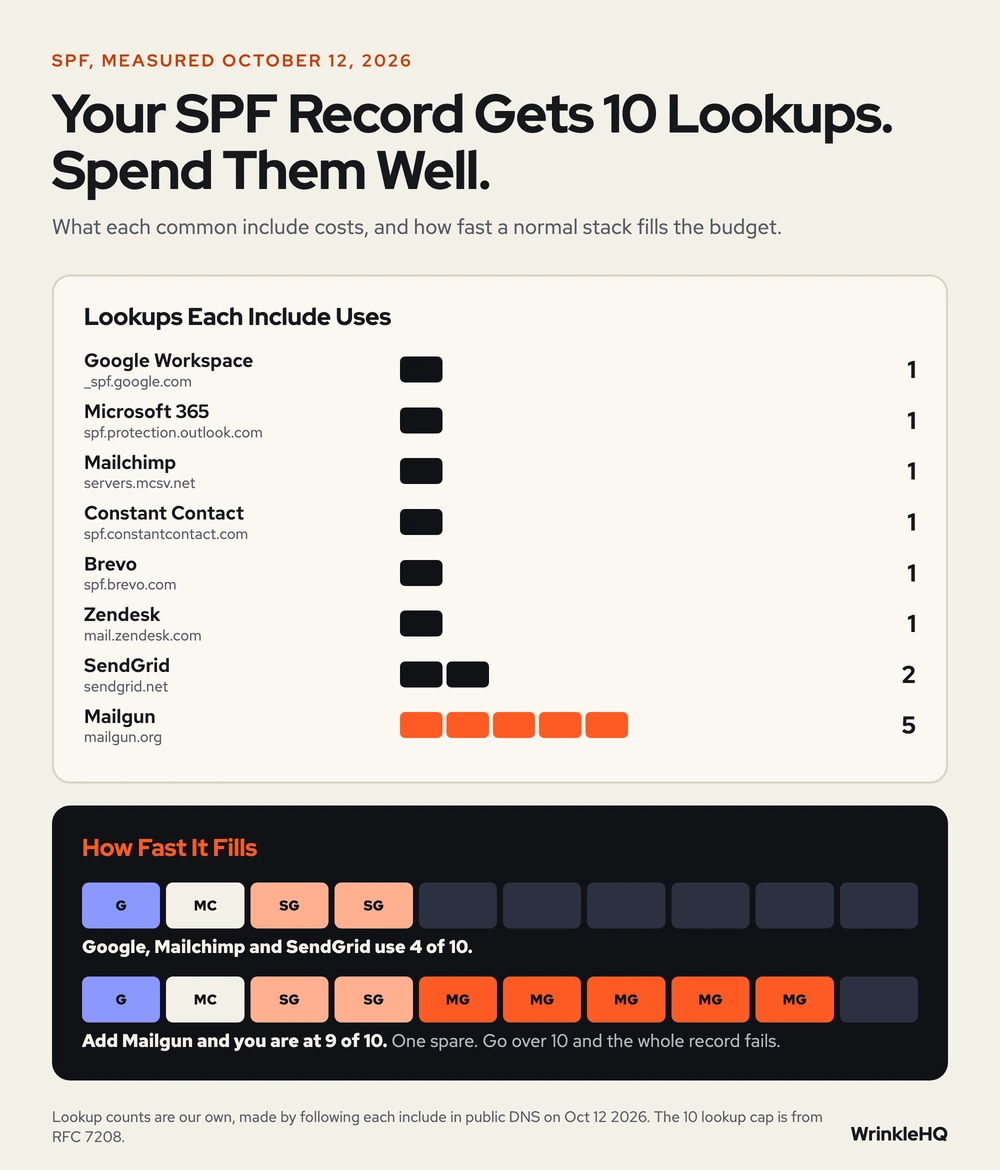
The second rule is the lookup budget. RFC 7208 caps an SPF check at 10 DNS lookups. Every include, a, mx, ptr and exists counts, and so does every include nested inside another include. Go over 10 and the whole record fails. The same standard says receivers should stop after two lookups that find nothing, so a dead include for a tool you dropped can break it too.
We measured what the common includes cost on October 12, 2026, by following each one down to the end. Vendors change these, so check yours before you rely on it.
| Tool and Its Include | Lookups |
|---|---|
| Google Workspace _spf.google.com | 1 |
| Microsoft 365 spf.protection.outlook.com | 1 |
| Mailchimp servers.mcsv.net | 1 |
| Constant Contact spf.constantcontact.com | 1 |
| Brevo spf.brevo.com | 1 |
| Zendesk mail.zendesk.com | 1 |
| SendGrid sendgrid.net | 2 |
| Mailgun mailgun.org | 5 |
A record with Google, Mailchimp and SendGrid uses four of your ten. Add Mailgun and you are at nine. That leaves one spare for the next tool, which is not much room.
Google's own setup page gives the record for a domain that only uses Workspace. It is v=spf1 include:_spf.google.com ~all. Google recommends the ~all ending, which tells receivers to treat mail from other servers as suspect. To add a tool, put its include before the ending, inside the same record.
Some tools, like many newsletter senders, do not need your SPF at all. They send from their own bounce domain and pass DMARC through DKIM. If the tool's setup page does not ask for an SPF include, do not add one. That saves your budget.
Step Three, Turn On DKIM in Every Tool
DKIM is a signature. The tool signs each message with a private key. Your DNS holds the public key, at a name like google._domainkey for Google Workspace. The receiver checks the signature against it. If the message was changed on the way, the check fails.
Each tool gets its own selector, so you can have five DKIM records and they never clash. That is the big difference from SPF. Adding DKIM for a new tool never breaks the others.
- In Google Workspace, generate the key in the Admin console, add the TXT record, wait for it to show, then press Start authentication.
- In Microsoft 365, the setup gives you two CNAME records named selector1 and selector2. Add both, then turn signing on.
- In a CRM or newsletter tool, the domain setup page lists the records. Most are CNAMEs that point back to the tool, so it can rotate keys for you.
Google's sender guidelines say DKIM keys must be at least 1024 bits and recommend 2048. If your Workspace key is old, make a new 2048 bit key and switch to it.
Send a test to a Gmail address once each tool is set up. Open the message, choose Show original, and look for DKIM PASS with your own domain. If it shows the tool's domain instead, the setup is not finished.
Step Four, Publish DMARC at None, Then Tighten
DMARC is the record that tells receivers what to do when a message fails, and asks them to send you reports. It has three policies. p=none means deliver as usual and just report. p=quarantine means send failures to spam. p=reject means refuse them.
Never start at reject. If you missed a sender in step one, reject throws away your own invoices. Google's rollout guide for Workspace lays out the safe path, and we follow it.
| Stage | Policy | Time | What You Do |
|---|---|---|---|
| Ready | None yet | 48 hours | SPF and DKIM live first, per Google |
| Watch | None, with reports | About one week | Read reports and fix any sender that fails |
| Test | Quarantine, low percent | Until clean | Google's example starts a small group at 10 percent |
| Ramp | Quarantine, raise it | Step by step | Go up to 100 percent |
| Lock | Reject, optional | Once nothing legit fails | Failures are never delivered |
Microsoft gives the same advice in its own sender FAQ. Move from none to quarantine to reject, slowly, so you do not lose real mail.
The rua tag in the record is where the reports go. Use a mailbox you will read, or a report service. The reports come as zipped XML files, one per provider per day. The finishing pieces show you how to read one by hand.
What Google, Yahoo and Microsoft Require Now
This is no longer optional for anyone who sends in volume. Each provider's own page says this, accessed October 2026.
| Provider | All Senders | Bulk Senders |
|---|---|---|
| Gmail | SPF or DKIM, valid reverse DNS, TLS, spam rate under 0.3 percent | Over 5,000 a day to Gmail, SPF and DKIM, DMARC of at least none, alignment, one click unsubscribe |
| Yahoo | SPF or DKIM, valid reverse DNS, complaints under 0.3 percent | SPF and DKIM, DMARC of at least none that passes, one click unsubscribe, opt outs honored within 2 days |
| Outlook.com | Best practice | Over 5,000 a day, SPF and DKIM pass, DMARC of at least none, aligned |
Google's rules took effect on February 1, 2024, and its spam rate section says to stay under 0.1 percent. Yahoo began enforcing in February 2024. Microsoft announced its rules for Outlook.com, Hotmail and Live addresses on April 2, 2025. Its April 29 update said mail that fails would be rejected with error 550 5.7.515, starting May 5, 2025.
A local shop does not send 5,000 emails a day. It does not matter. The bulk rules are where the whole industry is heading, and a domain that already meets them never has to scramble.
Lock Down Domains That Never Send Email
Most businesses own spare domains. An old name, a misspelling, a city site. If those domains have no email records, a scammer can send mail that claims to come from them, and nothing stops it.
A domain that never sends mail gets two records. An SPF record of v=spf1 -all, which says no server may send for it. And a DMARC record with p=reject. That pair tells every inbox to refuse anything that claims the name. It costs nothing and takes five minutes per domain.
Look It Up Yourself
We opened each of these in October 2026 before writing this guide.
- Google, Email sender guidelines, Google Workspace Admin Help.
- Google, Set up SPF, and Recommended DMARC rollout, Google Workspace Knowledge Center.
- Yahoo, Sender Best Practices, Yahoo Sender Hub.
- Microsoft, Outlook's New Requirements for High Volume Senders, Microsoft Defender for Office 365 Blog, April 2, 2025, updated April 29, 2025.
- RFC 7208, Sender Policy Framework, sections 3.2 and 4.6.4.
- RFC 7489, Domain based Message Authentication, Reporting and Conformance.
The lookup costs in the SPF table are our own count, made by following each include in public DNS on the same day.
What the Finishing Pieces Contain
With the steps above you can get all three records live and start DMARC safely. The finishing pieces give you copy ready records for the most common setups, a walk through of one real DMARC report line by line, the edge cases that quietly break small business mail, and the checklist we run before moving any domain to quarantine. Mail that lands is only half of it. See how a lead that comes in gets a reply in seconds with a missed call text back, or how we run hosting and IT for the whole stack.
The finishing pieces
Get the Rest of This Guide
You have the method. The finishing pieces are the parts you copy straight into your own work:
- Copy Ready Records for Common Setups
- How to Read One DMARC Report by Hand
- Edge Cases That Quietly Break Mail
- The Check Before You Tighten
Odds and Ends
- Do I need SPF, DKIM and DMARC if I only send a few emails a day?
- Yes. Gmail and Yahoo ask every sender for SPF or DKIM, and DMARC is what proves your mail matches your From address. A small shop's quotes and invoices are the mail you can least afford to lose to spam.
- Can I have two SPF records?
- No. RFC 7208 says a domain must not publish more than one, and a second record makes the check return an error. Put every sender in one record.
- What DMARC policy should I start with?
- Start with p=none and a report address. Google's rollout guide says to watch the reports for about a week, then move to quarantine at a low percent and raise it step by step.
- Why do my emails go to spam even with SPF set up?
- Usually because the tool that sent them is not signing with DKIM for your domain, so DMARC alignment fails. It can also be a second SPF record or more than 10 lookups. Check the message in Gmail with Show original.
- Does Gmail check SPF, DKIM and DMARC?
- Yes. Google's sender guidelines require SPF or DKIM for all senders, and SPF, DKIM and a DMARC record for anyone sending more than 5,000 messages a day to Gmail accounts.
Other Answers
 Avenue 8 of 8
Hosting and IT That Stays Out of Your Way
Your site runs on edge hosting that stays fast and does not need patching. T3CHS handles the rest of the hosting and IT so a broken email or a lost password is not your whole afternoon.
Read it Free guideReviews Guide
Automate Review Requests Without Breaking Platform Rules
Ask every customer, right after the job, with one reminder and nothing in return. Then reply to every review you get, good or bad.
Read it Contact Layer
CRM and Phone With GoHighLevel and CallRail
Every form, call and text lands in one GoHighLevel inbox as a contact with tags that say where it came from. CallRail tells you which page or ad made the phone ring.
Read itWe sell time
Get Years of Building Switched On in Hours
A thirty minute call. A written price. Nothing built until you say yes.